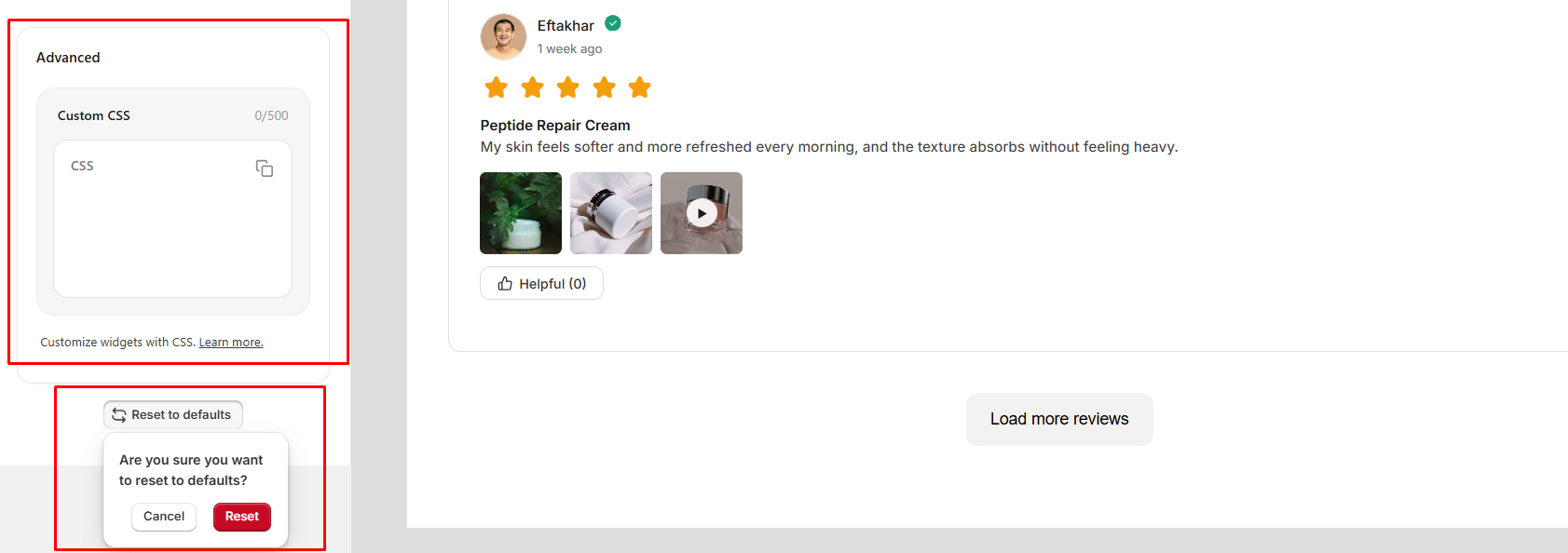
QuickReview Tabs
QuickReview is organized into three tabs, each designed to manage a different part of the customer review experience.
- Widget Tab: Customize how product reviews are displayed on your storefront, including the review summary, review list, colors, buttons, and other visual elements.
- Form Tab: Customize the review submission form that customers use to share their feedback, ratings, and product experience.
- Success Tab: Customize the confirmation experience customers see after successfully submitting a product review.
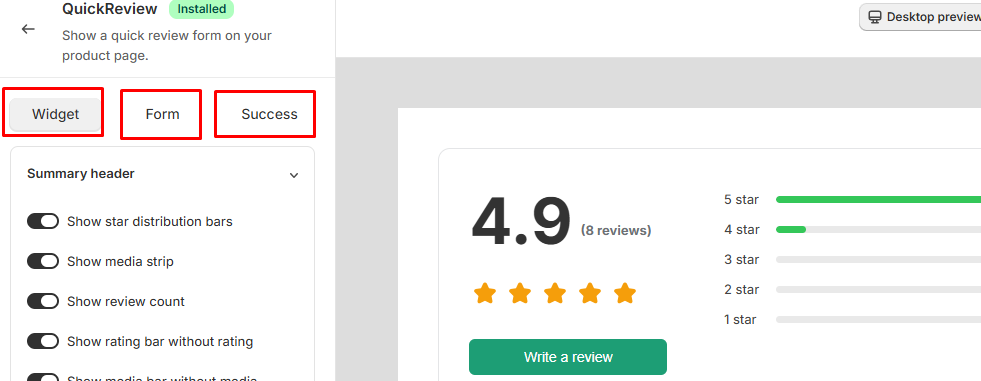
Widget Customization
The Widget tab lets you customize the appearance and layout of your product review section. You can configure different elements of the review widget to match your store's branding and provide a better customer experience.
The Widget tab includes the following customization options:
Summary Header Settings
- Show star distribution bars: Turn this on to display star rating distribution bars. Turn it off to hide them.
- Show media strip: Turn this on to display customer review images and videos. Turn it off to hide the media strip.
- Show review count: Turn this on to display the total review count next to the overall rating. Turn it off to hide the review count.
- Show rating bar without rating: Turn this on to display rating bars even when there are no reviews for a specific rating. Turn it off to hide empty rating bars.
- Show media bar without media: Turn this on to display the media section even when no review media is available. Turn it off to hide the media section when there is no media.
- Button text: Customize the text displayed on the review submission button, such as "Write a review."
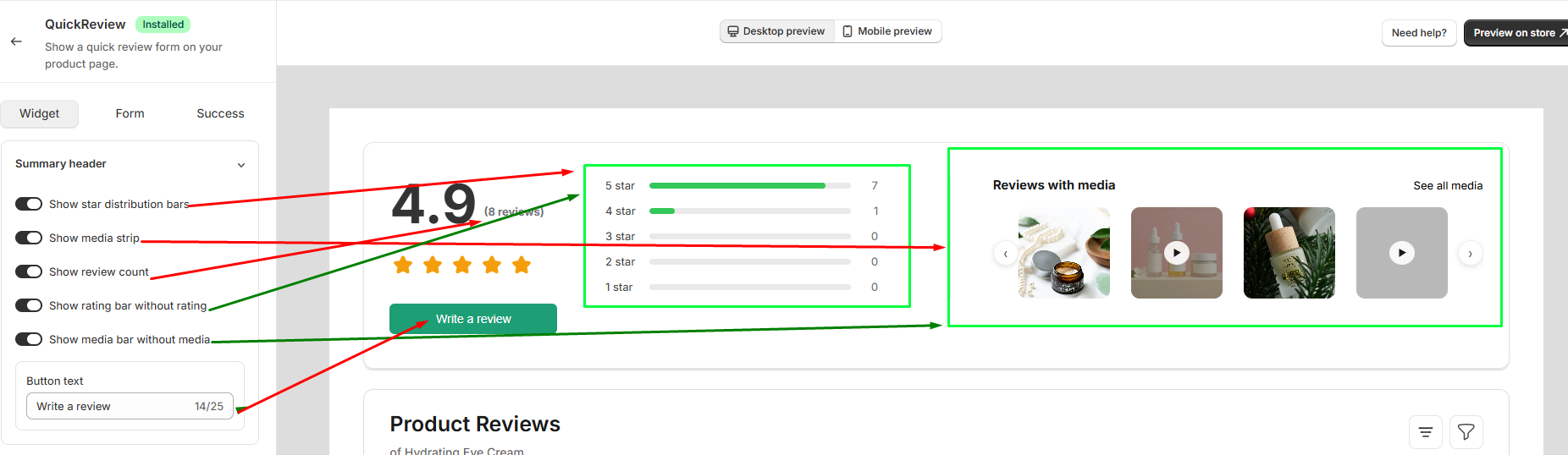
Review List Display
The Review List Display settings allow you to customize how individual customer reviews are displayed on your storefront.
- Show reviewer name: Turn this on to display the customer's name on the review card. Turn it off to hide the reviewer name.
- Show media thumbnails: Turn this on to display images and video thumbnails attached to a review. Turn it off to hide the media thumbnails.
- Show product name on card: Turn this on to display the product name on each review card. Turn it off to hide the product name.
- Show verified badge: Turn this on to display the verified badge next to verified reviewers. Turn it off to hide the verified badge.
- Show review date: Turn this on to display the date when the review was submitted. Turn it off to hide the review date.
- Show star rating on card: Turn this on to display the customer's star rating on the review card. Turn it off to hide the star rating.
- Show helpful button: Turn this on to display the Helpful button, allowing customers to mark a review as helpful. Turn it off to hide the button.
- Review per page: Set the number of reviews displayed on each page.
- Default sort: Choose the default order in which reviews are displayed, such as all reviews or another available sorting option.
- Filter & sorting: Choose whether to display the filter and sorting options on the review list.
- Filter min stars: Set the minimum star rating available for filtering reviews, or choose to show all ratings.
Colors
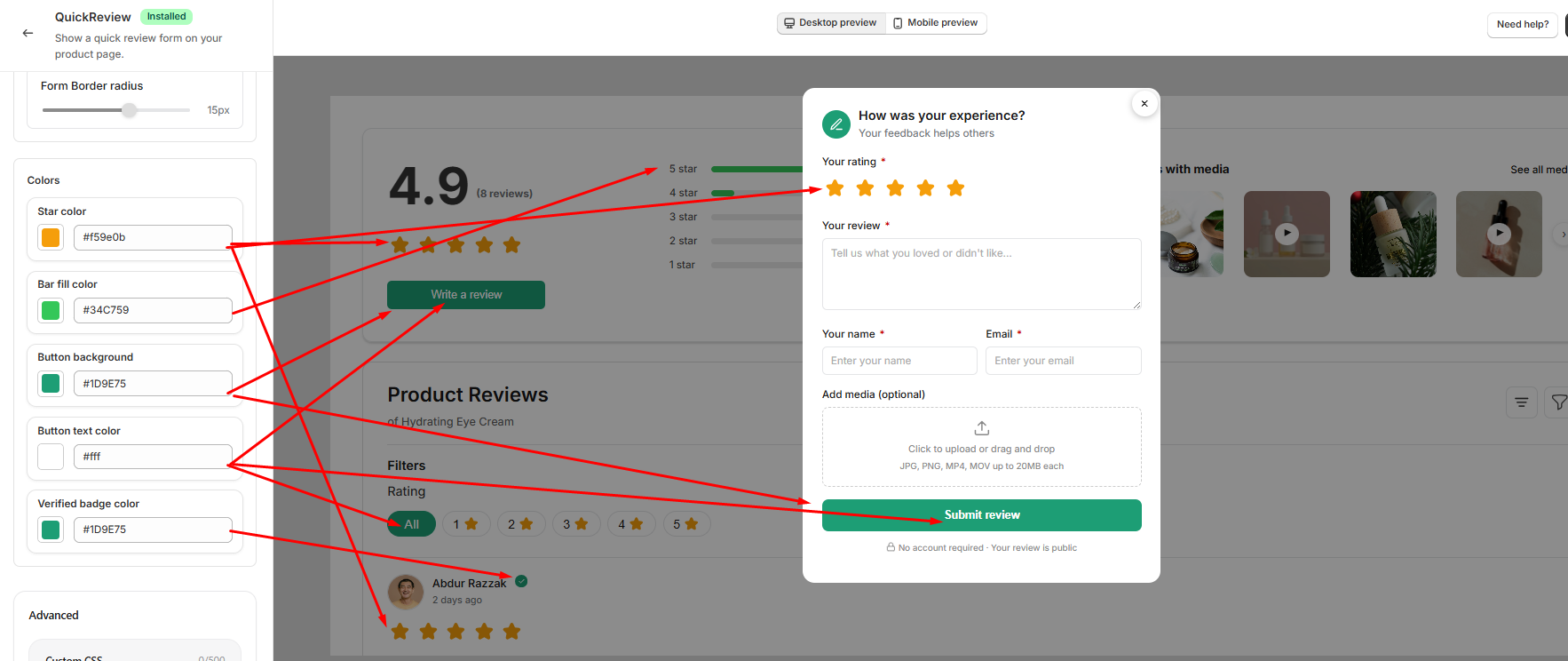
The Colors settings allow you to customize the colors used throughout the review experience. The selected colors are applied consistently across the Widget, Form, and Success sections.
- Star color: Customize the color of the star ratings displayed across the review widget, review form, and Success.
- Bar fill color: Customize the fill color of rating distribution bars.
- Button background: Customize the background color of review-related buttons, including the Write a review and Submit review buttons.
- Button text color: Customize the text color used on review buttons.
- Verified badge color: Customize the color of the verified badge displayed next to verified reviewers.
Form Customization
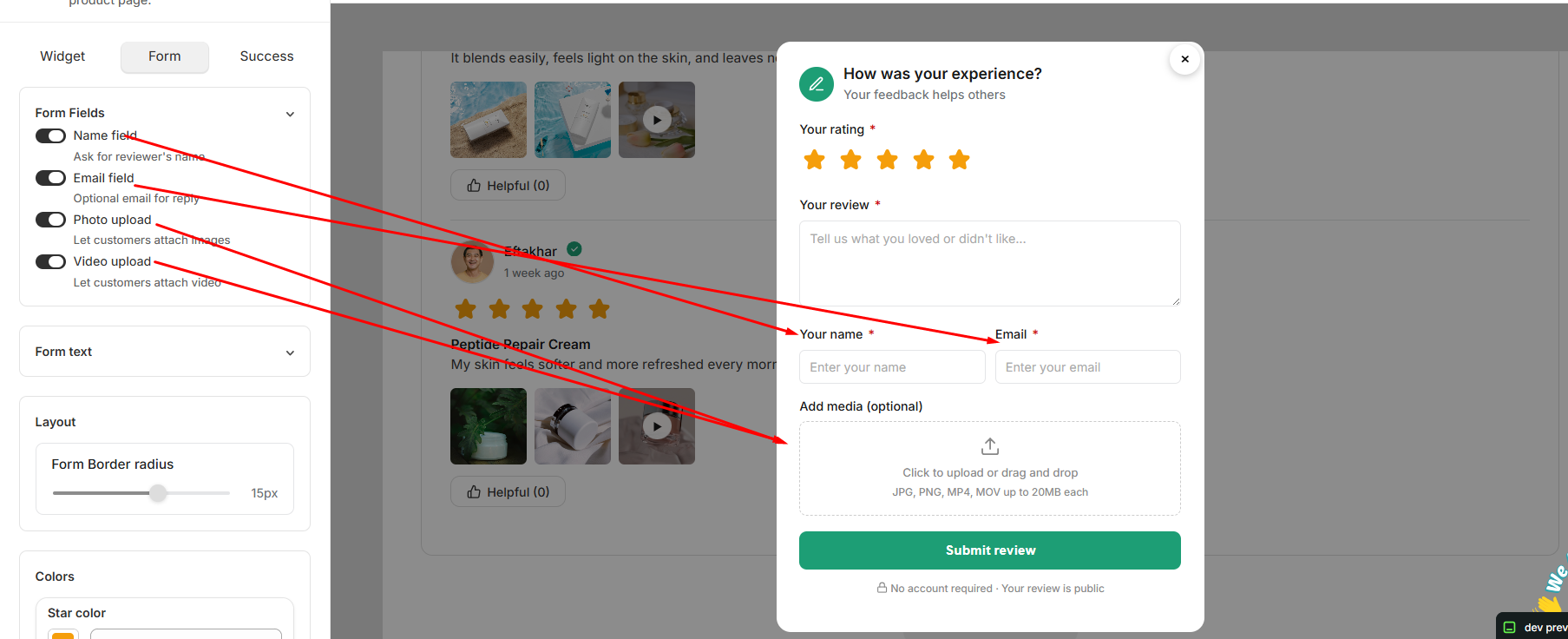
The Form tab allows you to customize the review submission form and control which fields and options are available to customers when submitting a review.
Form Fields
- Name field: Turn this on to ask customers to provide their name when submitting a review. Turn it off to hide the name field.
- Email field: Turn this on to ask customers for their email address. Turn it off to hide the email field.
- Photo upload: Turn this on to allow customers to attach images to their reviews. Turn it off to disable photo uploads.
- Video upload: Turn this on to allow customers to attach videos to their reviews. Turn it off to disable video uploads.
Form Text
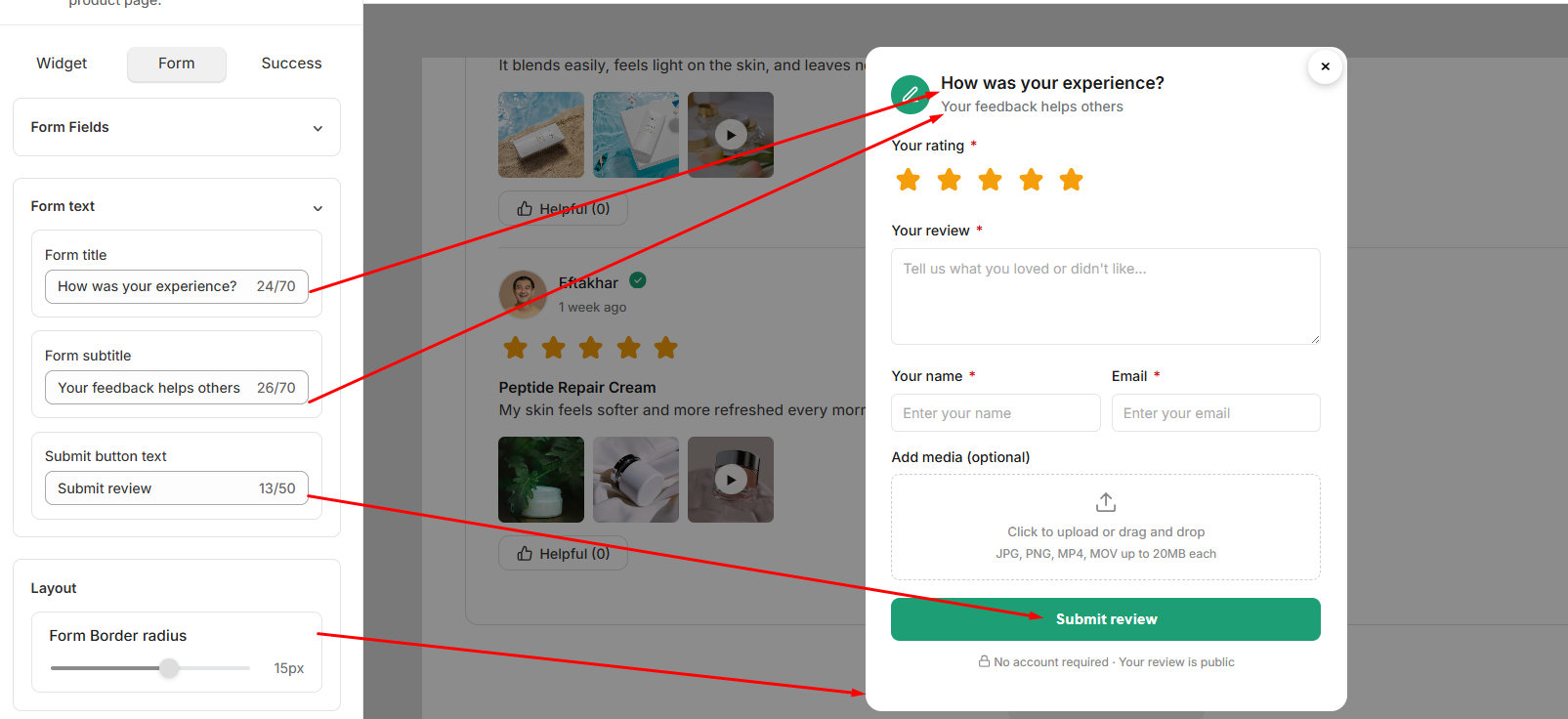
The Form Text section allows you to customize the text displayed in different areas of the review submission form.
- Form title: Customize the main heading displayed at the top of the review submission form.
- Form subtitle: Customize the supporting text displayed below the form title.
- Submit button text: Customize the text displayed on the review submission button.
Layout
- Form border radius: Adjust the border radius of the review form to control how rounded the form's corners appear.
Success Customization
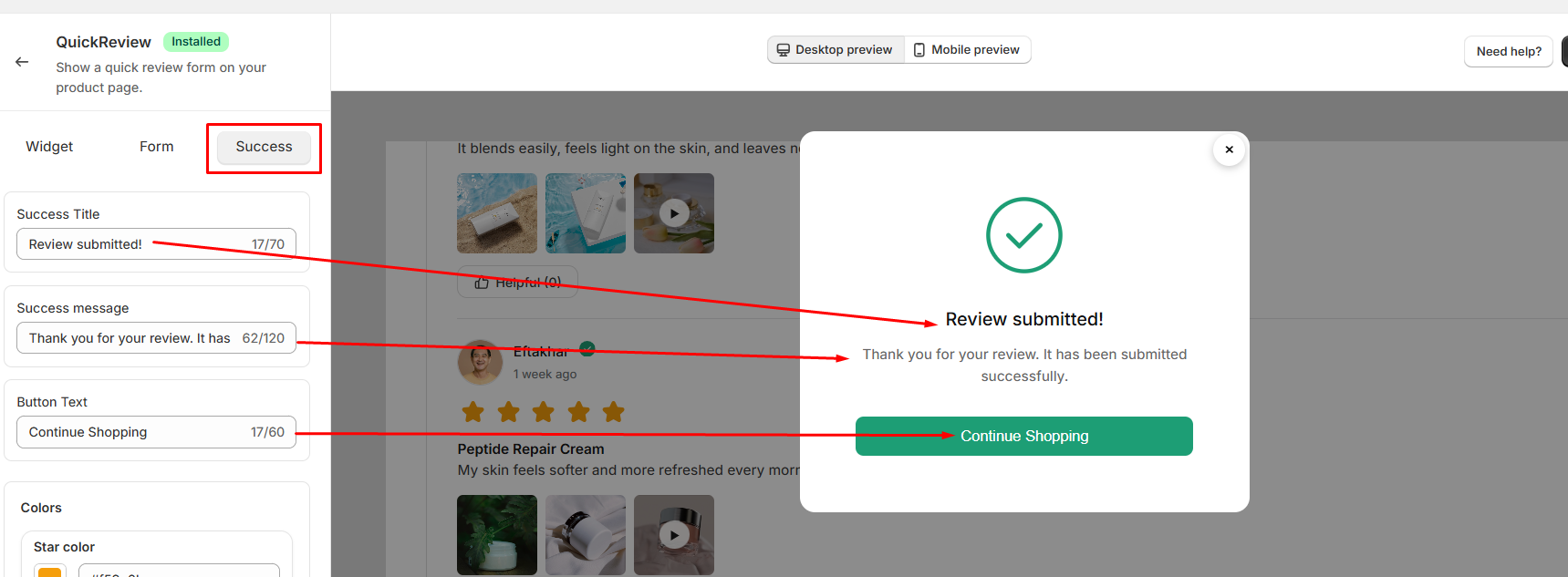
The Success tab allows you to customize the confirmation message customers see after successfully submitting a product review.
- Success Title: Customize the main title displayed after a review is successfully submitted.
- Success Message: Customize the confirmation message shown to customers after their review has been submitted successfully.
- Button Text: Customize the text displayed on the button, such as "Continue Shopping."
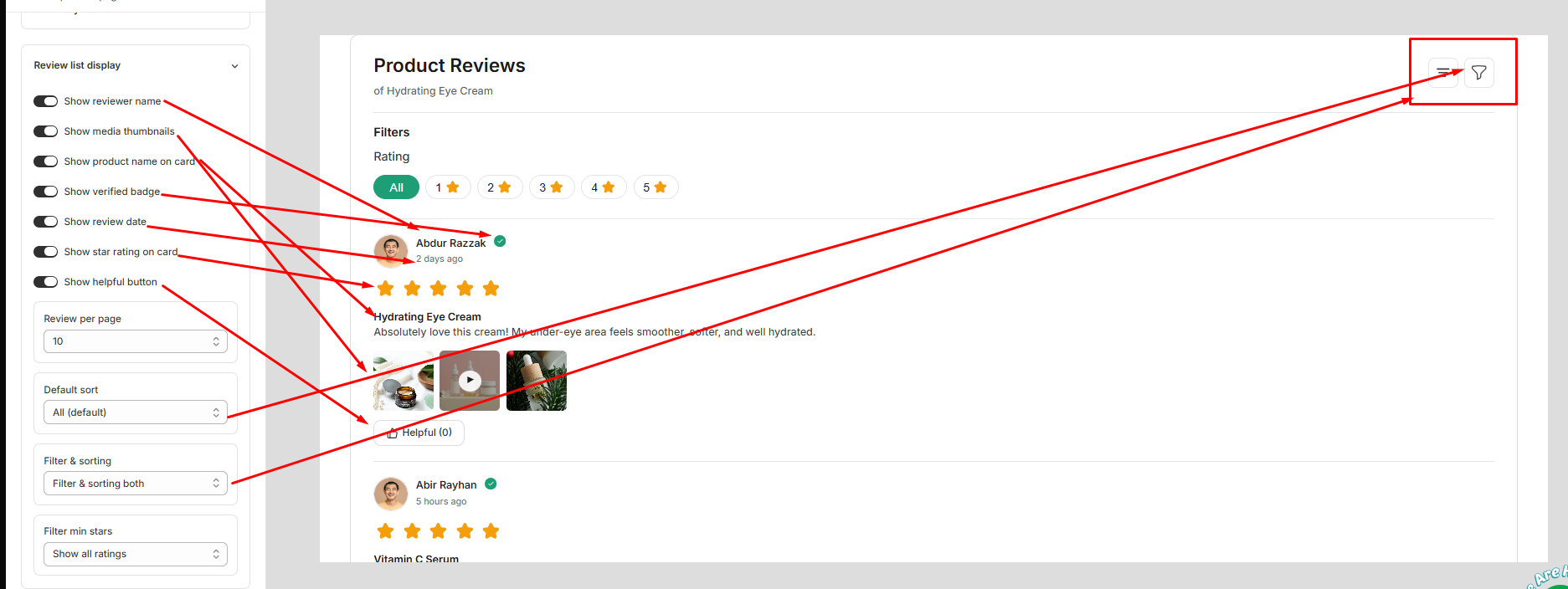
Advanced
The Advanced section provides additional customization options for the review widget.
- Custom CSS: Add your own CSS code to customize the appearance and styling of the review widget beyond the available settings. You can use custom CSS to make more specific design adjustments to match your store's theme.
- Reset to defaults: Reset all review customization settings to their default values. A confirmation is required before the settings are reset.