Custom CSS — Quick Guide
Use Custom CSS to customize the appearance of your review widget without changing the theme's main CSS files.
What Is Custom CSS?
Custom CSS lets you change the design of the review widget, including colors, font sizes, spacing, borders, buttons, review cards, filters, reviewer information, images, and responsive/mobile styling.
Important: Custom CSS only changes the visual appearance. It does not change review data or widget functionality.
How to Add Custom CSS
- Open the QuickReview app and go to the review widget settings.
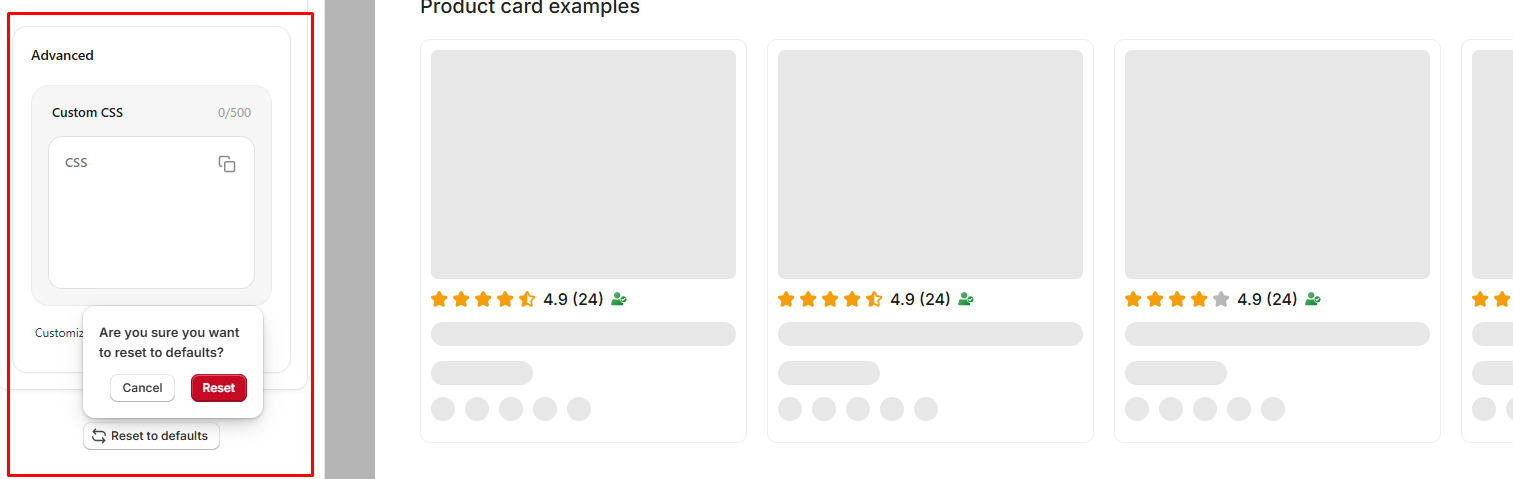
- Scroll down to Advanced and find the Custom CSS field.
- Add your CSS code.
- Check the Desktop preview and Mobile preview.
- Save/publish your changes, then verify the result on your live storefront.
Basic CSS Syntax
CSS uses a selector and a set of properties:
.my-element {
  color: #111827;
  font-size: 16px;
  font-weight: 600;
}
Using !important
If a style isn't applying because another rule has higher priority, add !important:
.review-button {
  background: #1d9e75 !important;
  color: #ffffff !important;
}
Use it only when necessary — overusing !important makes future CSS changes harder to manage.
Responsive / Mobile CSS
Use media queries to apply different styles on mobile vs. desktop:
@media (max-width: 768px) {
  .review-card {
    padding: 14px;
  }
  .review-title {
    font-size: 20px;
  }
}
Always check both Desktop preview and Mobile preview after adding responsive CSS.
Troubleshooting
My CSS isn't working
- Make sure the selector matches the widget element and check for spelling mistakes.
- Inspect the element in your browser to confirm the class/ID.
- Check whether another CSS rule is overriding your style — try adding
!importantif needed. - Make sure your CSS is valid, and check both desktop and mobile previews.
My CSS is changing other parts of the store
- Your selector is likely too generic. Replace broad selectors like
button { border-radius: 20px; }with a widget-specific one like.quickreview-widget .review-button { border-radius: 20px; }.
Best Practices
- Keep your CSS short, organized, and commented for larger customizations.
- Use specific selectors — avoid changing global elements like
body,button,p, orh1unless necessary. - Test on both desktop and mobile before publishing.
- Avoid excessive use of
!important. - Keep a backup of working CSS before making major changes.
- Start with one small change, preview it, then gradually add more.