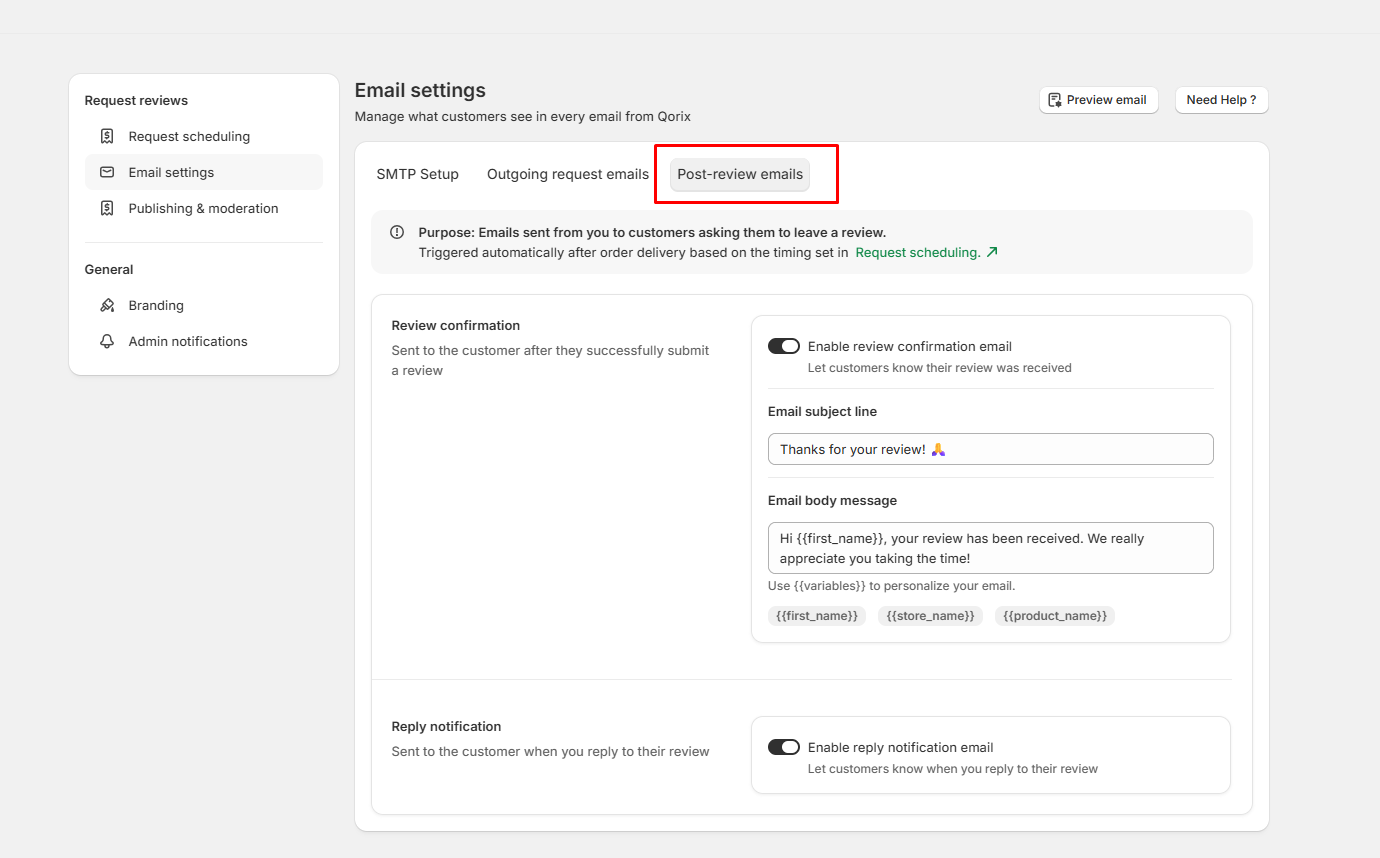
Email Settings
Customize sender details, templates, and delivery preferences for review request emails.
SMTP Setup
The SMTP Setup tab under Email settings lets you connect your own custom email server. Configuring your mail credentials ensures that all review request emails are delivered directly from your brand's email address, improving inbox deliverability and domain authority.
SMTP Configuration Fields (Optional)
- SMTP User: Enter the official email address used to send review requests (e.g., example@gmail.com).
- Sender Email: You can add your sender email here. Once you add it, all review request emails sent to customers will be sent from this email address.
- SMTP Password: Enter your email mailbox password or provider app-specific password.
- SMTP Port: Specify your email server's port number (e.g., 465 for SSL connections or 587 for TLS).
- SMTP Host: Enter your mail provider's outgoing SMTP server address (e.g., smtp.gmail.com).
Using Gmail? Follow the step-by-step Gmail SMTP Setup Guide to generate an App Password and configure these fields correctly.
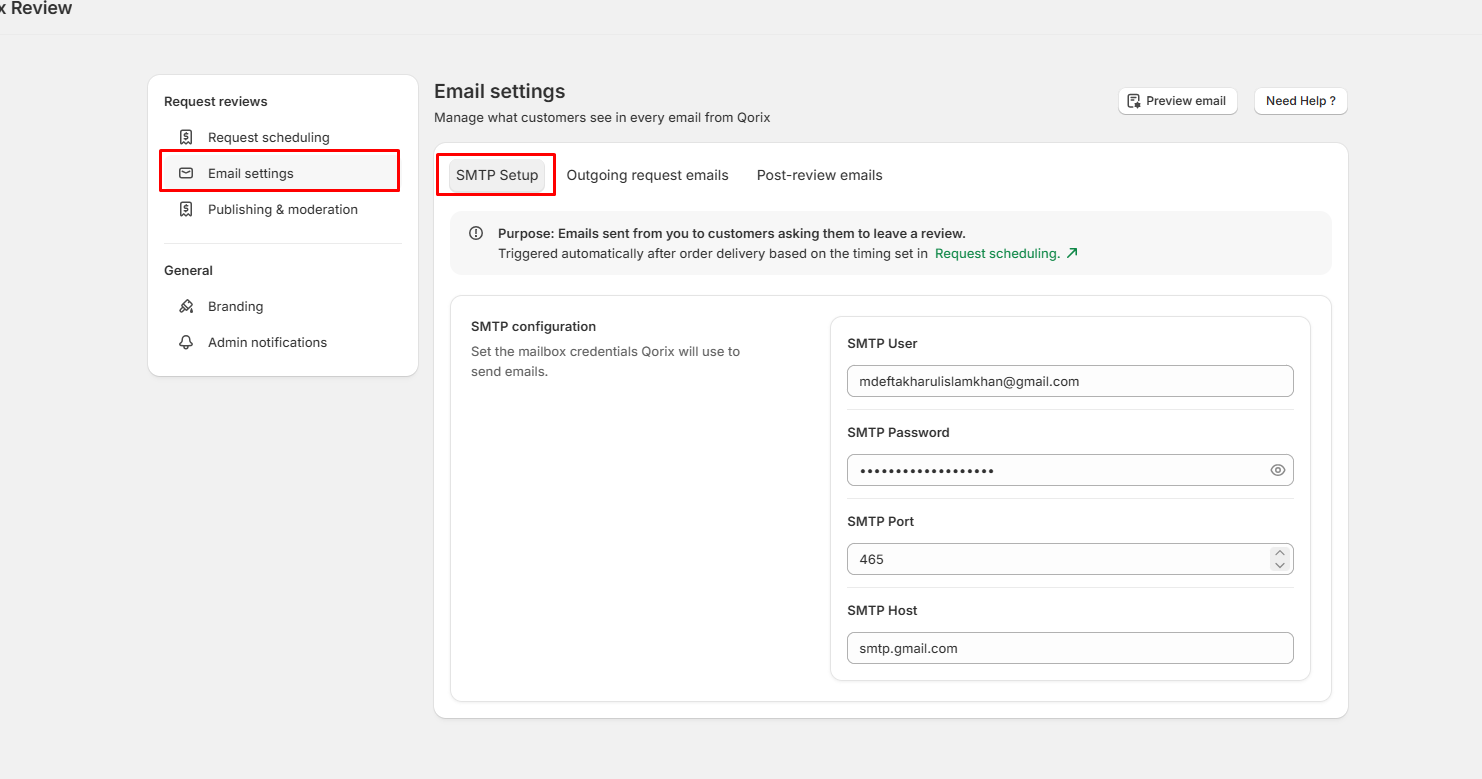
Outgoing Request Emails
The Outgoing request emails tab allows merchants to fully customize the content, phrasing, and call-to-action (CTA) buttons for every email sent during the review collection process.
1. Request Email Content
Sent automatically after order delivery to prompt customers to leave an initial review.
- Email subject line: Sets the subject line for the initial invitation (e.g., How did we do? Share your thoughts ⭐️).
- Email body message: The primary text sent to the customer. You can personalize it using dynamic variables such as {{first_name}}, {{store_name}}, and {{product_name}}.
- CTA button text: Customizes the primary action button text (e.g., Leave a review).
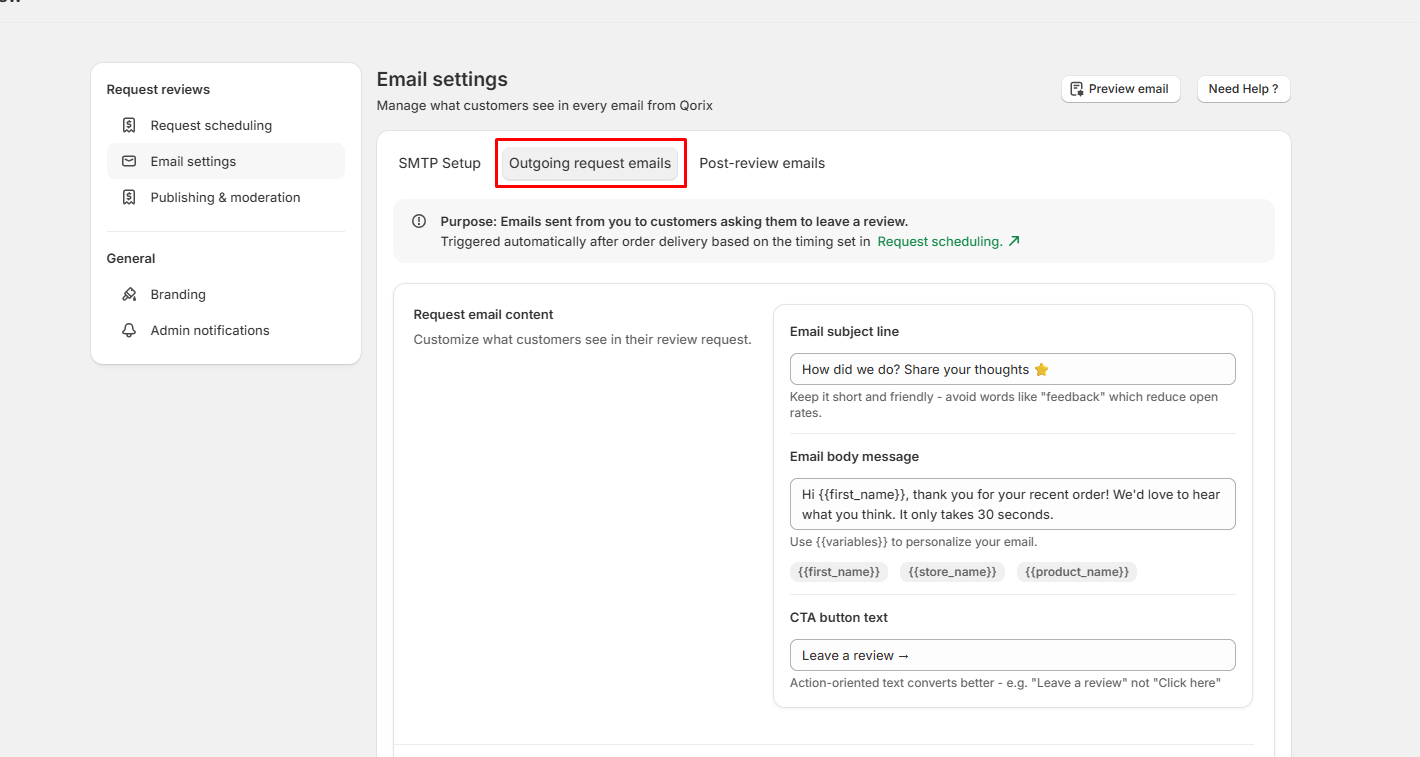
2. Reminder Email
Follow-up email sent if the customer does not respond to the initial review request.
- Subject line: Subject designed to re-engage the customer (e.g., Still time to share your thoughts ✍️).
- Email body: A polite reminder message encouraging feedback, supporting dynamic variables like {{first_name}}, {{store_name}}, and {{product_name}}.
- CTA button text: The follow-up button text directing them to the review form (e.g., Write my review).
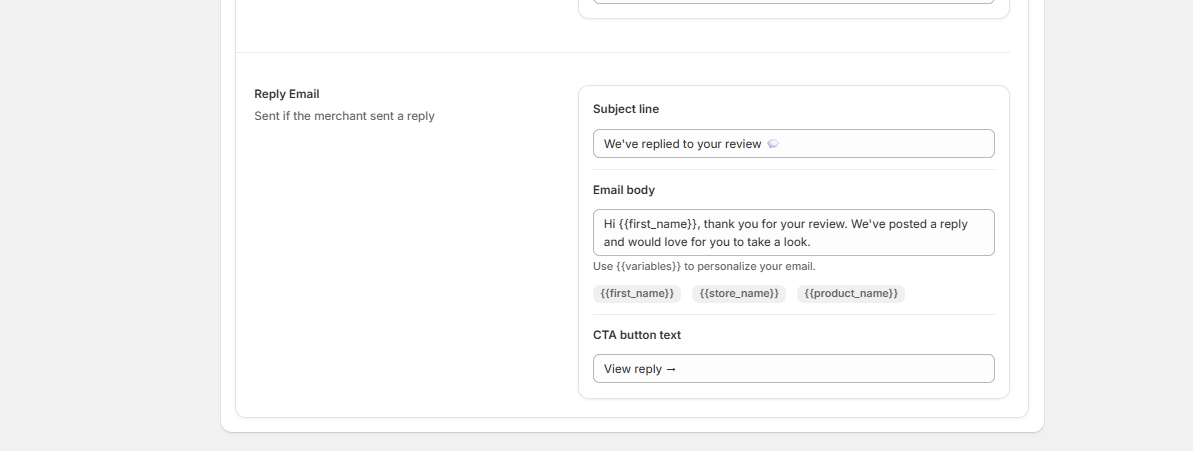
3. Reply Email
Triggered automatically when a merchant posts a reply to a customer's submitted review.
- Subject line: Alerts the customer that the store responded to their review (e.g., We've replied to your review 💭).
- Email body: Informs the customer about the store's response, customizable with dynamic variables.
- CTA button text: Directs the customer back to the storefront to view the published response (e.g., View reply).
Post-review Emails
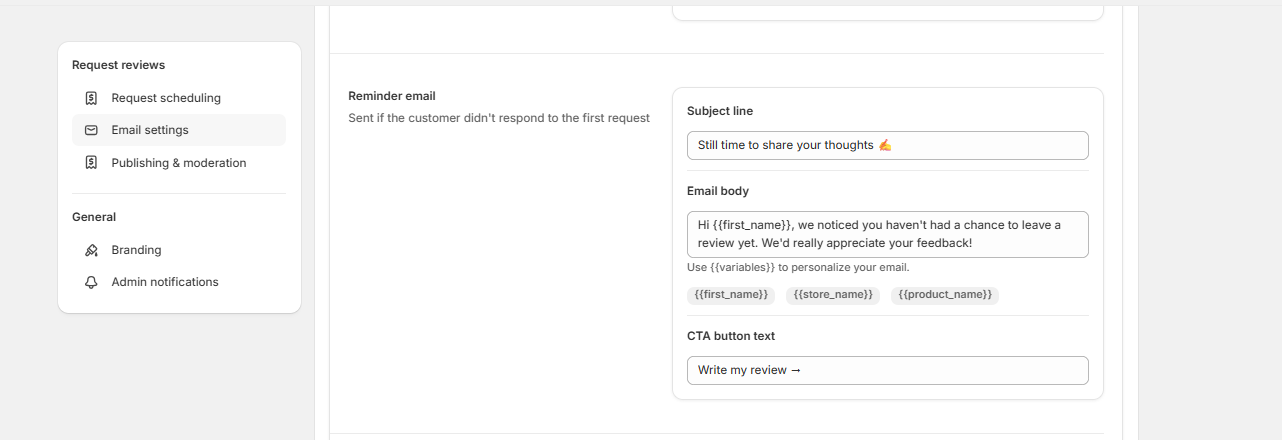
The Post-review emails tab manages automated communications sent to customers after they submit a review or when you respond to their feedback.
1. Review Confirmation
Sent automatically to the customer right after they successfully submit a review on your store.
- Enable review confirmation email: Toggle switch to activate or deactivate sending a thank-you confirmation email.
- Email subject line: Customizes the subject line of the thank-you email (e.g., Thanks for your review! 🙏).
- Email body message: The primary text thanking the customer. Supports dynamic personalization tags like {{first_name}}, {{store_name}}, and {{product_name}}.
2. Reply Notification
Sent automatically to the customer when a merchant posts a reply to their submitted review.
- Enable reply notification email: Toggle switch to turn on or off automated alerts notifying customers whenever you reply to their feedback.