Branding
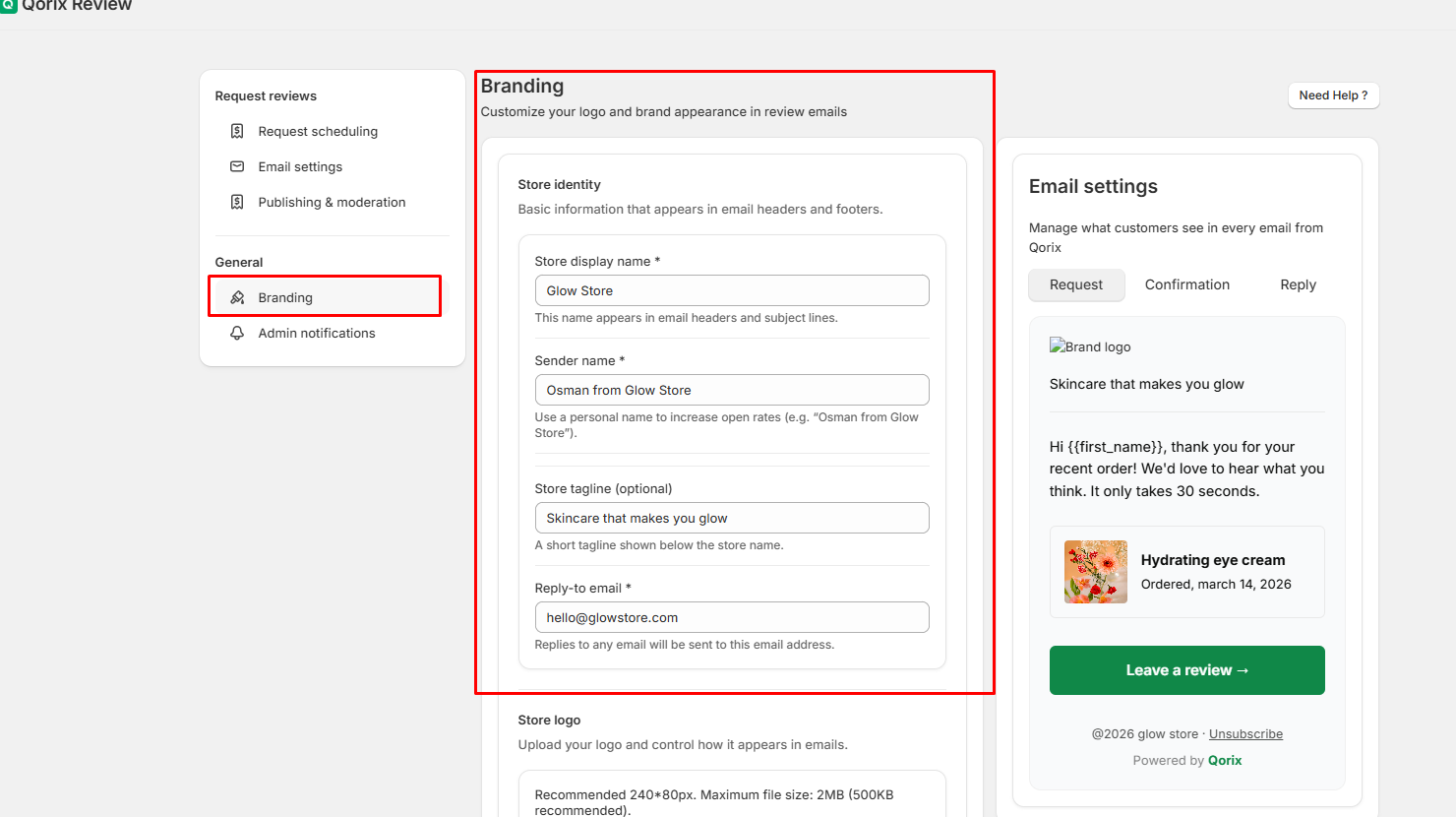
The Branding page allows you to customize the visual design and brand identity displayed in every review request email sent to your customers.
Store Identity
Set your core brand details to be displayed in the email headers and footers:
- Store display name: Your official store name (e.g., Glow Store). This appears in email headers and subject lines.
- Sender name: The personal or professional sender name (e.g., Osman from Glow Store). Using a personal name helps improve email open rates.
- Store tagline (optional): A short slogan or tagline for your store (e.g., Skincare that makes you glow).
- Reply-to email: The designated email address where customer replies will be directed (e.g., hello@glowstore.com).
Store logo
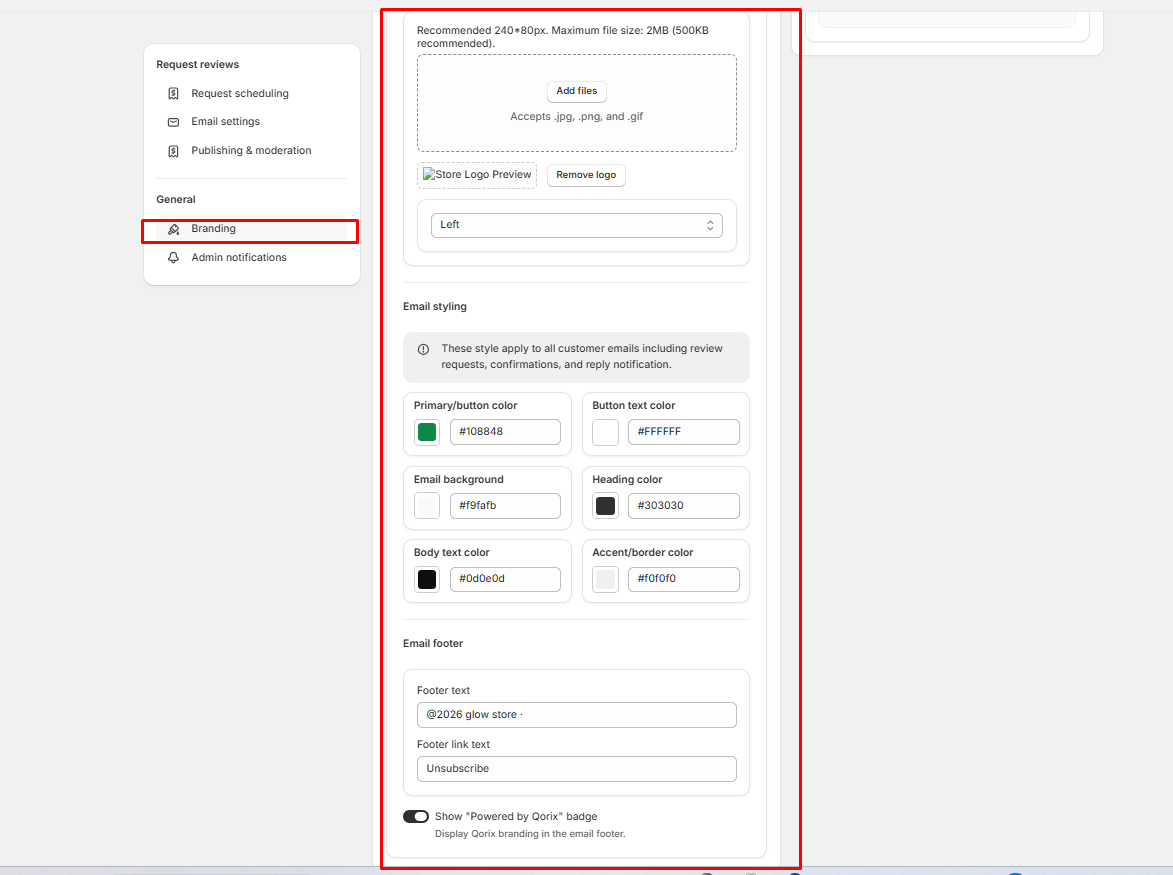
- Add files / Upload: Upload your official brand logo. Recommended resolution is 240×80px, max file size 2MB (500KB recommended). Accepts .jpg, .png, and .gif formats.
- Remove logo: Deletes the uploaded logo from the email header.
- Alignment Dropdown: Controls logo placement (Left, Center, or Right) inside the email header.
Email styling
Note: These styling rules apply universally to all customer emails, including review requests, confirmations, and reply notifications.
- Primary/button color: Sets the background color for Call-to-Action (CTA) buttons (e.g., #108848).
- Button text color: Sets the text color inside buttons (e.g., #FFFFFF).
- Email background: Sets the background color for the entire email container (e.g., #f9fafb).
- Heading color: Controls the color of main titles and section headers (e.g., #303030).
- Body text color: Controls the primary body copy color (e.g., #0d0e0d).
- Accent/border color: Sets the color for borders, cards, and divider lines (e.g., #f0f0f0).
Email footer
- Footer text: Sets the copyright or custom text displayed at the bottom (e.g., @2026 glow store).
- Footer link text: Customizes the text for the opt-out link (e.g., Unsubscribe).
- Show "Powered by Qorix" badge: Toggle switch to enable or disable displaying Qorix branding in the email footer.
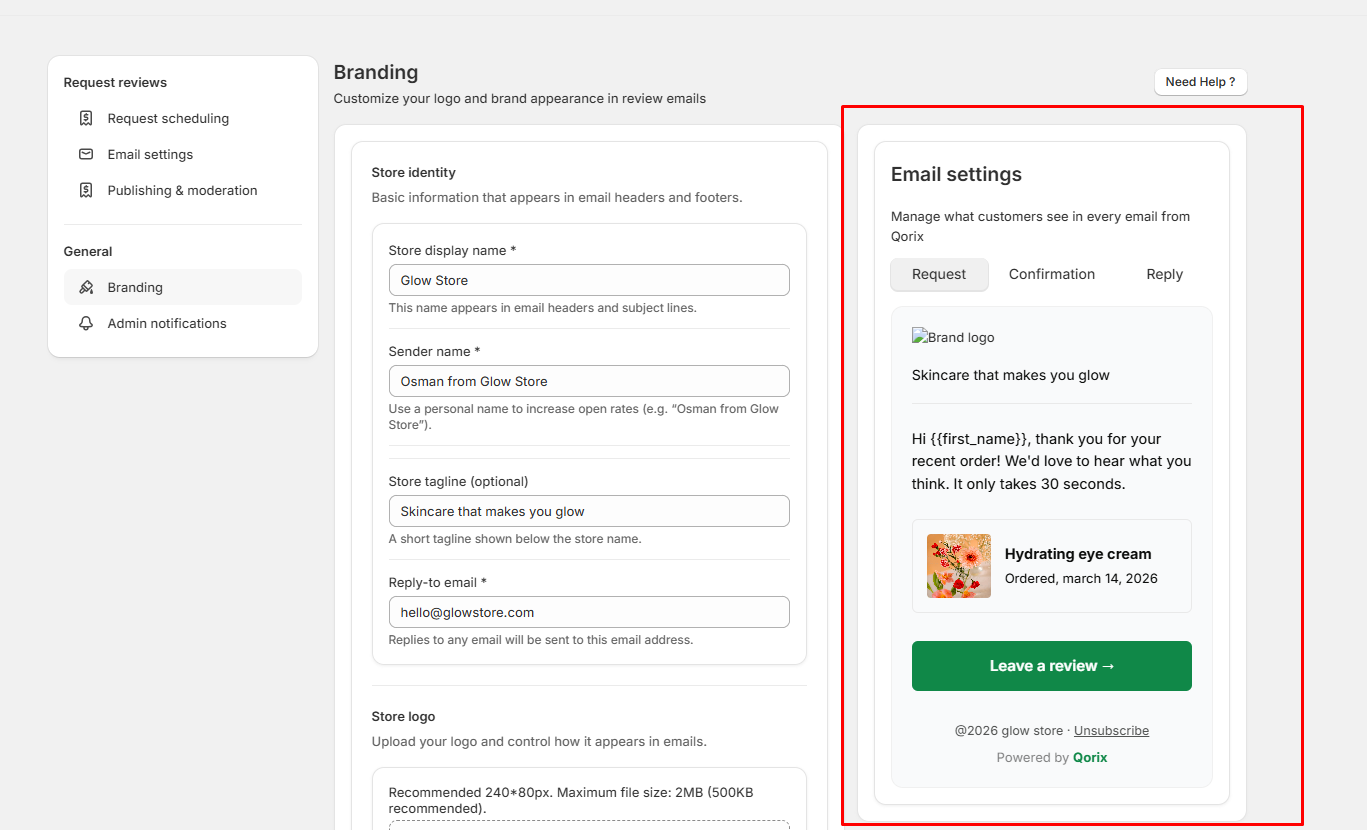
Email Settings Live Preview Tabs
The live preview section on the right displays real-time previews of how the data configured under Email Settings will appear in your customers' email inboxes. Any updates made in the email settings are reflected here instantly.
- Request
- Data Source: Pulls content directly from Email settings Outgoing request emails.
- Function: Previews the initial review invitation email sent to customers after order delivery, including your custom subject line, body text, product card, and the Leave a review CTA button.
- Confirmation
- Data Source: Pulls content directly from Email settings Post-review emails (Review confirmation).
- Function: Previews the automated thank-you/acknowledgment email that customers receive immediately after successfully submitting a review.
- Reply
- Data Source: Pulls content directly from Email settings Outgoing request emails (Reply Email).
- Function: Previews the notification email sent to the customer whenever a merchant posts a public response or reply to their submitted review, along with the View reply CTA button.